
Geode not connecting to Juniper Connect via USB
If your Geode connected to a Windows PC with a USB cable won't recognize Geode Connect or Juniper Connect, the steps below will resolve the issue.
1. Uninstall Geode Connect and/or Juniper Connect.
From Windows Settings > Apps > Installed apps,
Locate Geode Connect, select more options
 .
.
Select Uninstall.
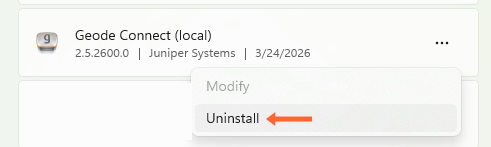
If Juniper Connect is also installed, repeat for Juniper Connect.
2. Reinstall Juniper Connect.
Download the latest version of Juniper Connect.
Run the installer. Follow the prompts.
Note: If the Geode is still not recognized through the USB cable, manually uninstall the driver.
(optional) Manually uninstall the driver
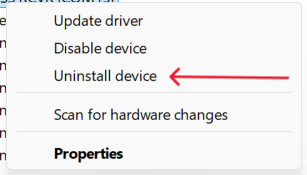
From Device Manager, right-click the device labeled GNSS RCVR.

Select Uninstall device.
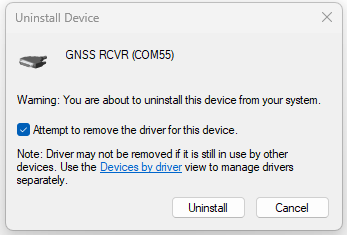
Ensure the check box for Attempt to remove the driver for this device is selected. Click Uninstall.
Disconnect and reconnect the USB cable.
Note: The Geode should now appear as a USB Serial Device.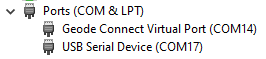
Note: If the Geode still appears as GNSS RCVR, reassign the driver.
Reassign the driver
From Device Manager, right-click GNSS RCVR.
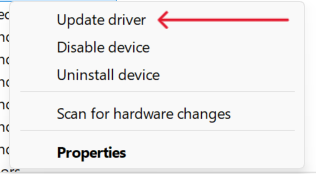
Select Update driver.
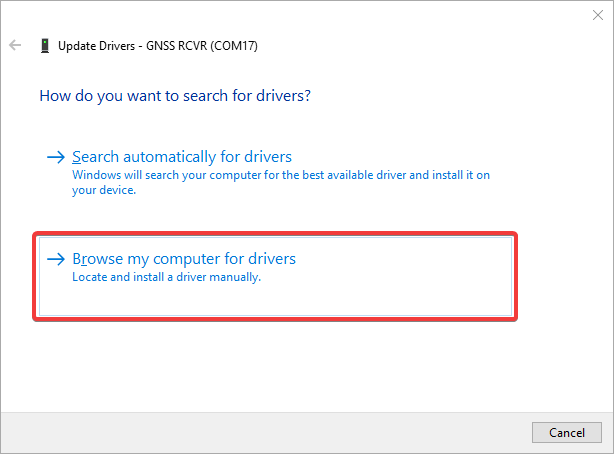
Select Browse my computer for drivers.
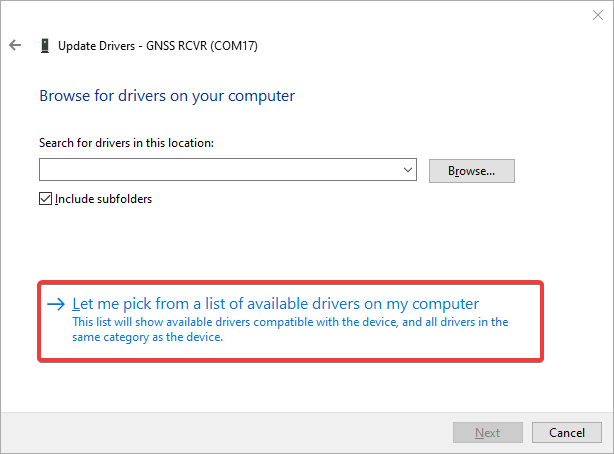
Click Let me pick from a list of available drivers on my computer.
Select a USB Serial Device.
Click Next.
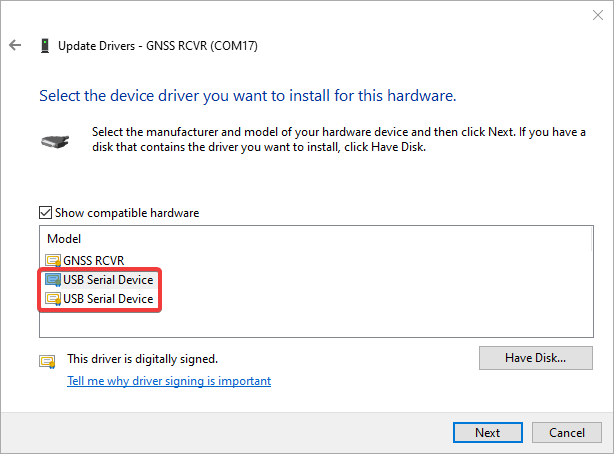
The device should now display as USB Serial Device.